Printing with Wepa
Printing on campus is facilitated by an outside vendor, Wepa. Wepa kiosks allow multiple methods for printing and scanning. Read below to learn how it all works.
How Wepa Printing Works
There are two overall avenues to printing with Wepa: using an account, or printing as a guest. In general, the procedure is to:
- Submit your documents to be printed.
- Access a Wepa kiosk.
- Confirm your options.
- Pay and print.
Learn more about the different options below.
Guest Users
As a guest user, you can submit print jobs without needing a Wepa account. To print, follow the procedure outlined below.
Submitting Your Document(s) as Guest
Send an email to Wepa Print's Submissions address, print@wepanow.com, with your document attached. Wepa can accept .docx, .pdf, .pptx, and more. You may indicate print options in the body of the email by typing Color, Duplex, or both.
Wepa will send you a reply shortly after receiving your submission. Confirm print options and make a note of your five-digit code.
*Note: You may also print using a USB flash drive instead of email.
Releasing Your Document(s) as Guest
You may release your print job from any Wepa kiosk on any campus.
To release your document(s):
- Approach a kiosk and select No card? Tap here.
- On the next screen, tap Log in with Wepa account, Wepa code, and more.
- Select I have a Wepa code.
- Enter your five-digit code at the kiosk.
- Confirm your desired print options.
- You will be prompted for payment (see Payment Options section, below).
Account Users
As a student with a Wepa account, you have more options to print from multiple devices.
Option One - Submit Your Document(s) from a Campus/Lab Computer
Log in using your @gcccd.edu SSO credentials. Choose a Wepa printer from the dropdown; BW = Black and White, Duplex = double-sided printing.
Option Two - Submit Your Document(s) from Your Personal Device
Log in at the Wepa Now website, select your school, and upload documents with your @gcccd.edu SSO credentials.
You may also print from your smartphone using the Wepa Print app (Apple App Store / Google Play). Log in with your @gcccd.edu SSO credentials.
Option Three - Print Directly from a Cloud Service
Link a cloud drive (Google Drive, OneDrive, Dropbox, etc.) to your Wepa/student account to print directly at a kiosk.
Printing Costs
Wepa's pricing is pay-per-page:
- Black and White (single-sided): 10¢ per page
- Black and White Duplex (double-sided): 15¢ per page
- Color (single-sided): 50¢ per page
- Color Duplex (double-sided): 75¢ per page
*Note: Print jobs incur a $0.40 processing fee unless funded by your account or total ≥ $5.00.
Paying for Prints
Pay for your print by:
- Tapping the Pay button on the kiosk:
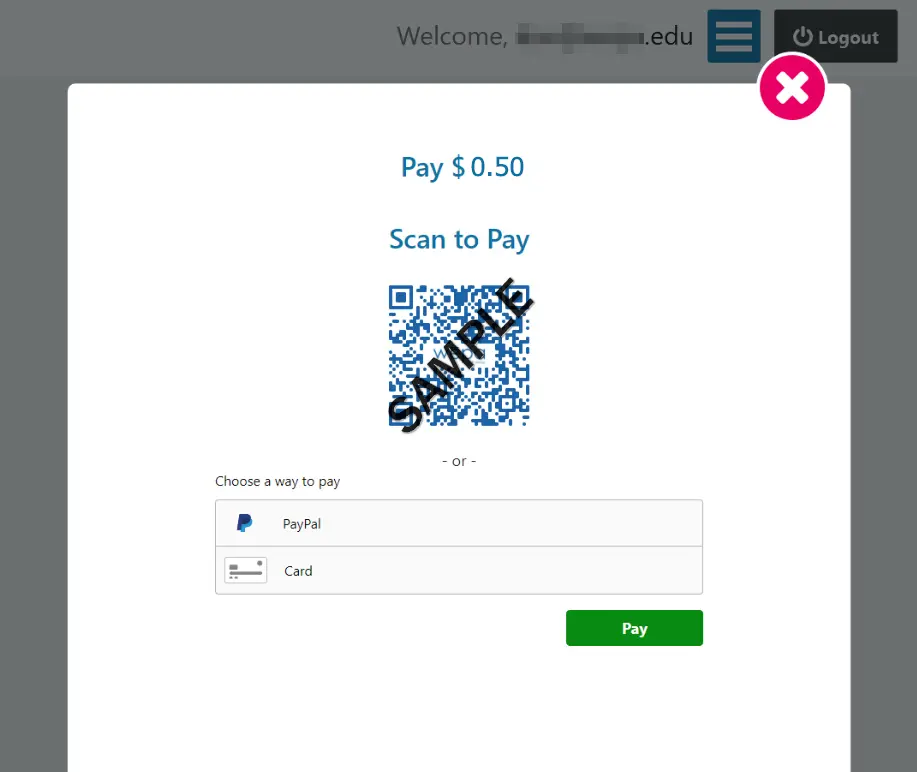
- Scan the QR code with your smartphone; a countdown timer begins:
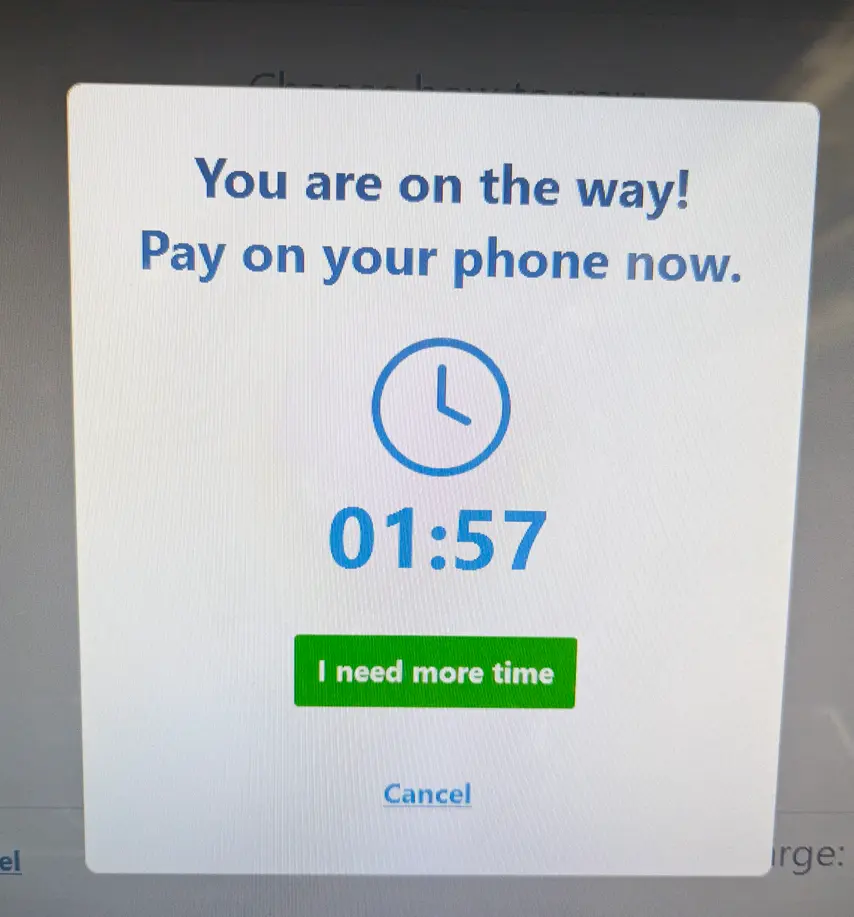
- Your device will display payment options:
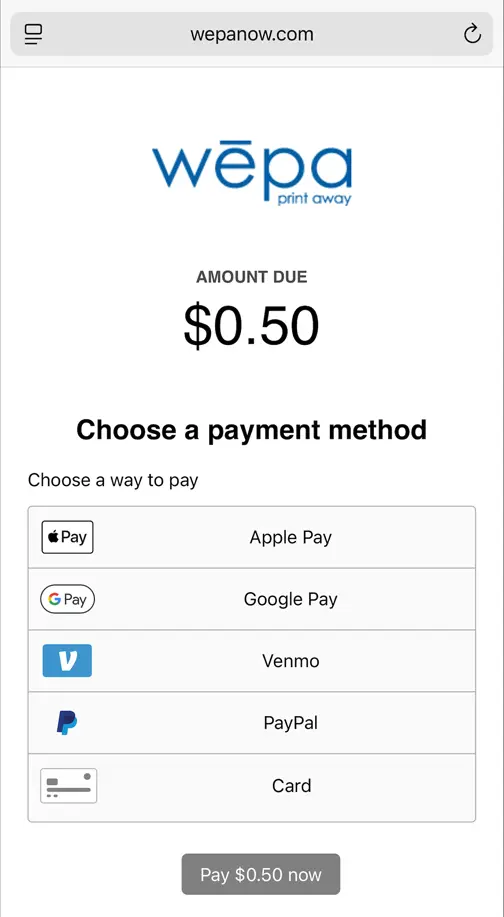
*Note: Options vary depending on device accounts and capabilities.
- Complete payment; the job releases. Retrieve your documents.
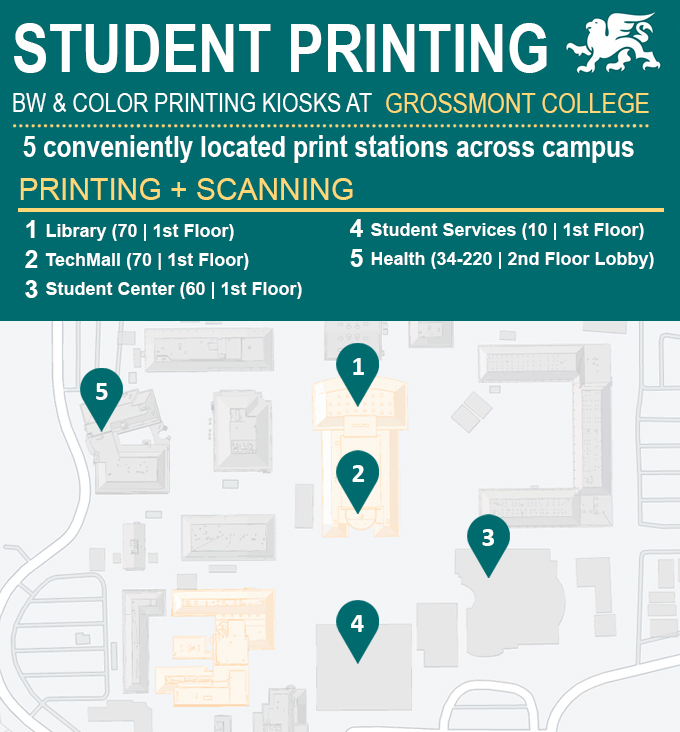
Wepa Kiosk Locations
Available at five campus locations:
- Library (Building 70, North, 1st Floor)
- Tech Mall (Building 70, South, 1st Floor)
- Student Center (Building 60, 1st Floor, next to Griffin Grill)
- Student Services (Building 10, across from Admissions and Records)
- Health Sciences lobby (Room 34-220, 2nd Floor)
Copying and Scanning
Wepa kiosks allow scanning and copying:
- Log In (optional) using student ID or Wepa account.
- Scan/Copy - Place document on scanner; follow prompts for multiple pages.
- Upload or Print - Save to cloud, USB, or print immediately.
Getting Help
For login, account, or queue issues, visit Tech Mall Open Computer Lab in Building 70.
For quality or misprint issues, submit a support ticket or chat with Wepa at support.wepanow.com.
Need Further Assistance?
For questions or clarifications, reach out to the Technology Help Desk.