Microsoft Authenticator
As of January 2024, all students, faculty, and staff will need to download and install the Microsoft Authenticator app to access most GCCCD resources. This guide will ensure the process goes smoothly. Please complete the entire procedure from your smartphone.
*Note: Screens and images may be slightly different but the overall process remains the same.
Set Up Authenticator
An overview of the process is as follows:
- Download the Authenticator app to your smartphone.
- Attempt to log in to Self-Service using the web browser on your smartphone.
- When logging in, you will be prompted to set up authentication.
- Tap a link in the browser to pair your account to the Authenticator app.
- Test the authentication by receiving an app notification on your phone.
*Note: The following procedure requires switching back and forth between different phone screens/apps. If you are not comfortable navigating multiple apps on your smartphone, you may wish to follow these alternate Authenticator procedures in which you scan a QR code on a separate device instead.
Please follow the procedures below to download and set up the app:
Part One - Download the Authenticator App
The app is available free of charge on the Google Play Store or the Apple App Store.
Start by getting the app:
- In your respective app store search for Microsoft Authenticator:
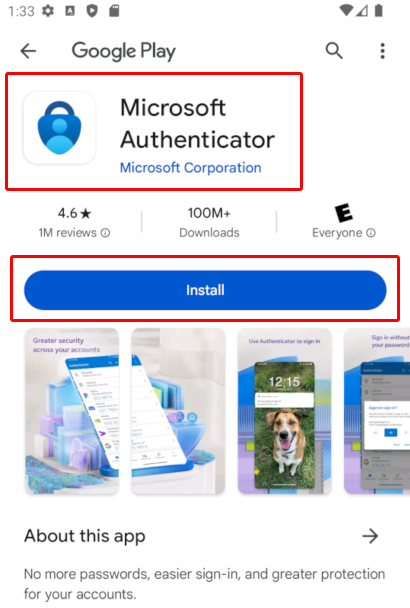
*Note: Double- and triple-check you're choosing the app by Microsoft Corporation.
- Install the app from the app store. Do not open it yet.
Part Two - Log in to Self-Service
Authentication is triggered when attempting to access most GCCCD resources. The school's main portal is Self-Service.
Start the process by trying to access Self-Service:
- Using your smartphone, open your web browser app. Chrome, Firefox, or Edge preferred (Safari may fail in some cases).
- Navigate to GCCCD's Self-Service portal (selfservice.gcccd.edu).
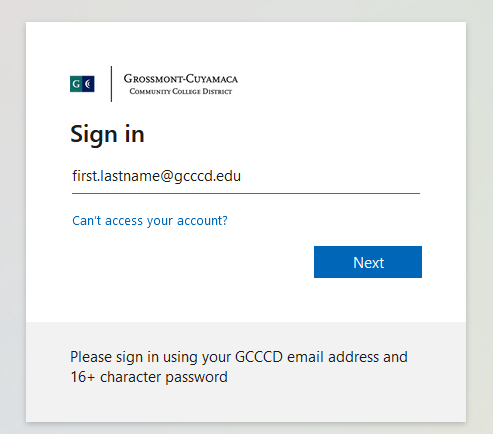
- Enter your @gcccd.edu email address. If unsure, see our FAQs or the Passwords and Accounts Guide. Select Next:
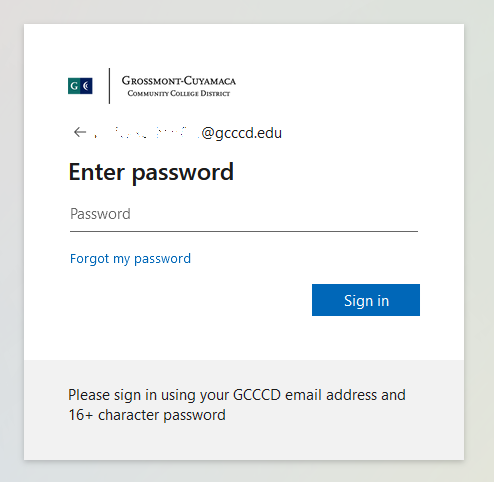
- Enter your password (see FAQ or guide if unsure) and select Sign In:
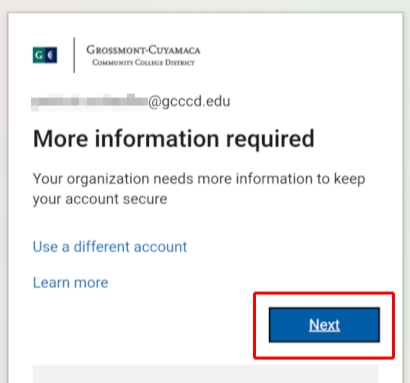
- You may see the Microsoft More information required screen. Select Next:
Part Three - Pair Your Account to the App
Pair your account to the Authenticator app by doing the following:
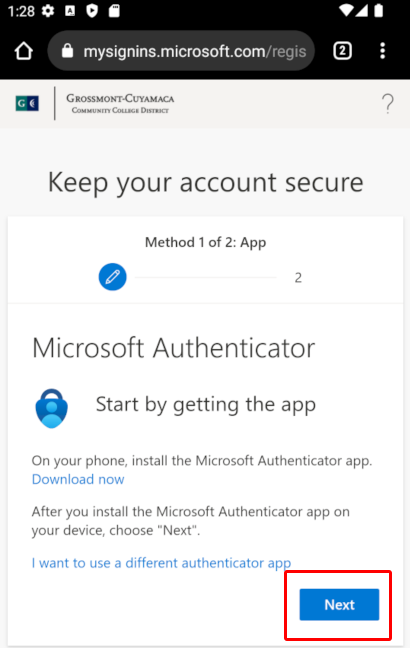
- Advance the Keep your account secure screen by selecting Next:
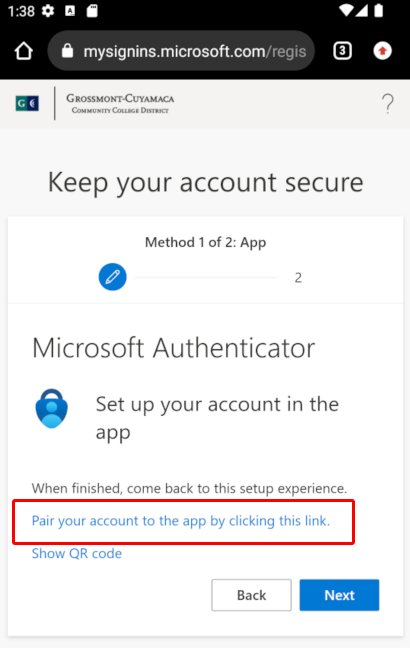
- Tap the link to pair your account to the app:
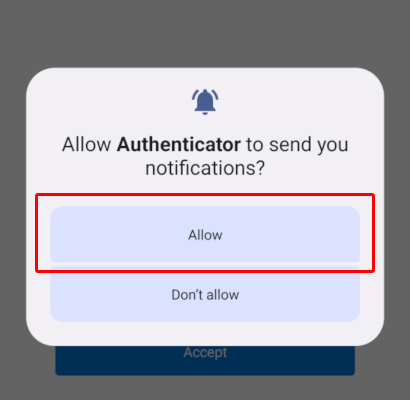
- Grant any requested permissions to the app (iPhone users may need to enable notifications in Settings):
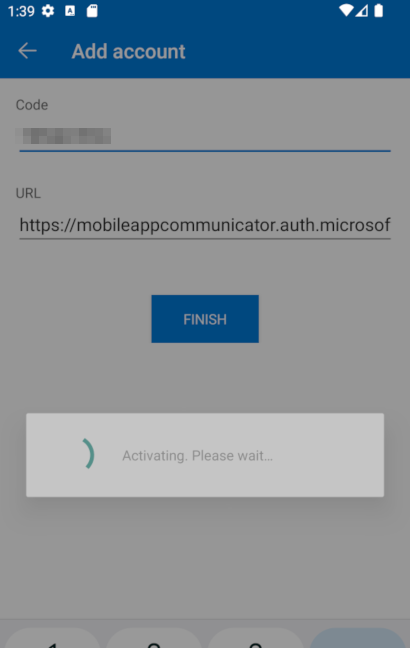
- App adds your account automatically; screen shows 'Activating...':
- Check that your account appears on the main screen of the Authenticator app:
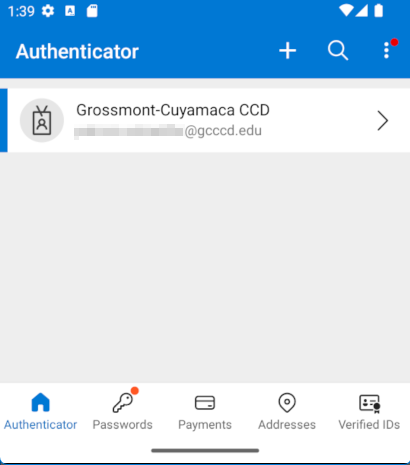
*Note: If your account does not appear, repeat Part Two and pair again.
Part Four - Finalize the Connection
If your account is listed in the app, you're nearly finished. Do not stop before completing the process below.
To test and finalize the connection:
- Switch back to the web browser and advance the screen if needed. You will see a two-digit code.
- Receive a notification on your phone from the Authenticator app:
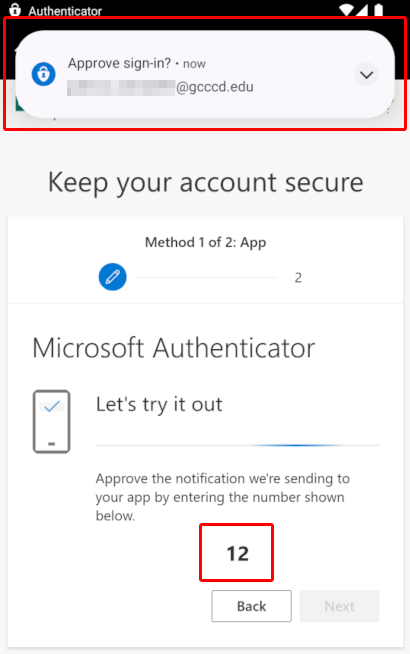
*Note: If no notification appears, open the Authenticator app and pull down to refresh.
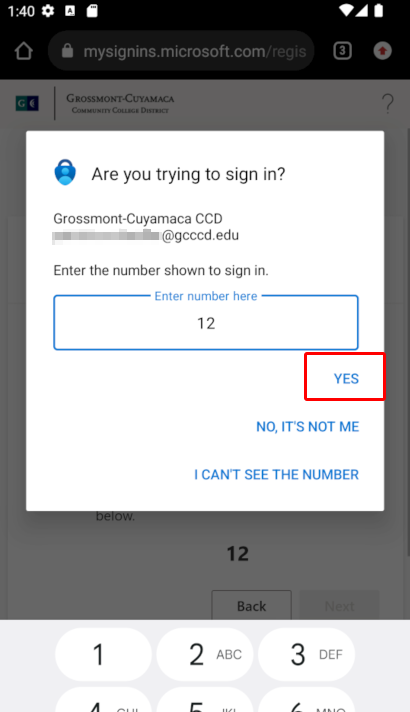
- Open the notification and enter the two-digit number displayed. Confirm Yes to approve sign-in:
- Browser updates with Notification approved message:
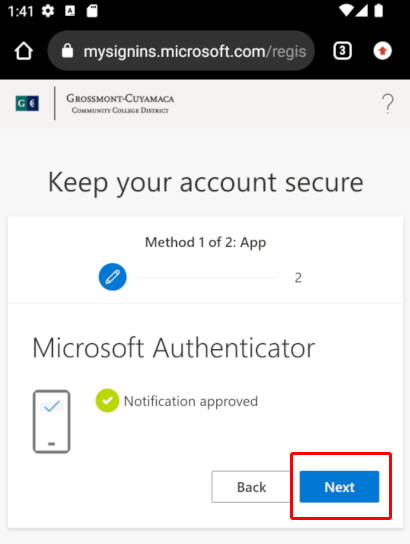
Choose Next if needed, then finish sign-in.
*Note: If prompted for your phone number, submit it, enter the text code, and your account will be fully authenticated.
Congratulations, you are now finished!
Microsoft Authenticator is successfully set up on your device. Next logins to school resources will simply require approving the sign-in on your smartphone.
Need Further Assistance?
If you have questions or need clarification about this guidance, please reach out to the Technology Help Desk.