Hyflex Classrooms
Hyflex classrooms are designed to enable both in-person and remote learning.
All Hyflex classrooms are equipped with an instructor-view camera and microphones for use in distance and hybrid learning. Most rooms also have a student-view camera.
*Note: No additional Hyflex rooms are planned at this time.
Equipment Key
Please consult the table below for the correct mic/camera/speaker choices for Zoom:
Room #
Room Type
Microphone
Speaker
Camera
Rear Display?
10-106*
Conference
20-104
Computer Lab
20-105
Classroom
20-116
Computer Lab
20-120
Computer Lab
20-212
Computer Lab
21-235
Classroom
24-263
Classroom
24-268
Classroom
24-269
Classroom
26-220
Classroom
26-221
Classroom
26-225
Classroom
30-252
Computer Lab
31-107*
Classroom
31-109*
Classroom
31-128*
Classroom
Avermedia
Dell P2418HT
Avermedia
yes- 65"
31-129*
Classroom
34-107*
1st floor lobby
mic (scarlett solo)
ExtronscalerD
USB capture SDI
34-135
Classroom
34-150*
Classroom
34-171
Classroom
34-201
Classroom
34-204
Classroom
34-206*
2nd floor lobby
34-207
Classroom
34-209
Classroom
34-210
Classroom
34-250
Classroom
34-251
Classroom
34-255
Conference
Shure ANIUSB
HDMI splitter (4-HD)
USB capture SDI
yes- 75"
41-116
Classroom
41-117*
Classroom
Dante USB
Dell P2418HT
Avermedia
yes- 75"
53-544A
Classroom
53-544B
Classroom
53-551A
Classroom
60-140
Career center
60-170
Classroom culinary
60-173
Classroom pastry
60-180
Conference GG
HDMI (USB capture HDMI+)
Extron HDMI
USB capture HDMI+
yes- 86"
60-207
Conference ASGC
70-104
Computer Lab
70-126
Computer Lab
70-134
Computer Lab
70-267
Computer Lab
100-109*
Classroom
100-111*
Classroom
100-115
Classroom
100-116*
Classroom
*Note: Asterisk ( * ) indicates a room with a single camera.
Zoom Settings
Below are the camera and mic settings for Zoom in these classrooms. These settings are on a "per user" basis -- meaning every individual who logs in must make the initial selections for themselves. Please note, you should only need to set these up once.
Camera Settings
See available camera views by clicking the chevron ( ^ ) on the Video button:
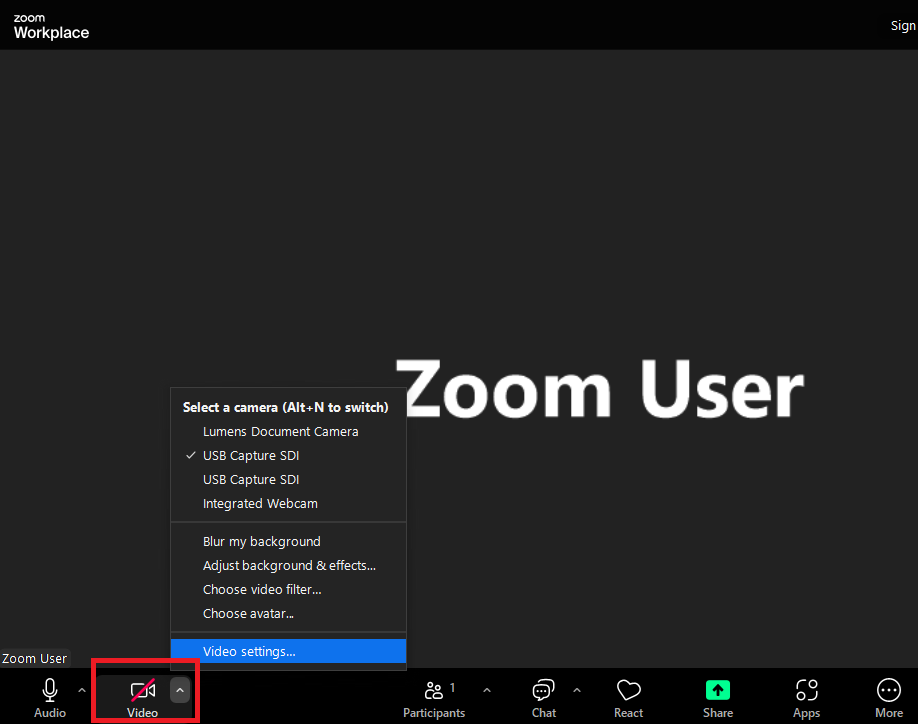
Use the desired camera by selecting it in the list.
If the image appears distorted or blurry, click on Video settings... in the same menu.
Verify that HD is enabled, and Mirror my video is disabled:
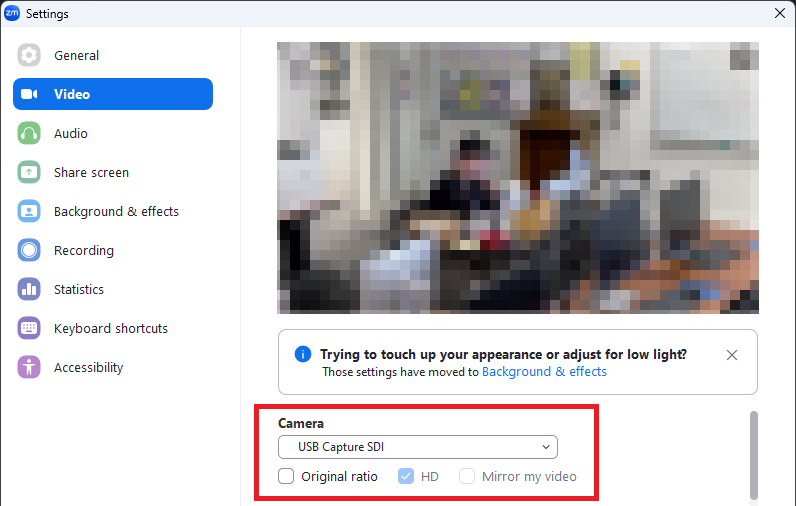
If either is not the case, please contact IMS at x7374.
Microphone and Speakers
See available microphone and speaker choices by clicking the chevron ( ^ ) on the Audio button:
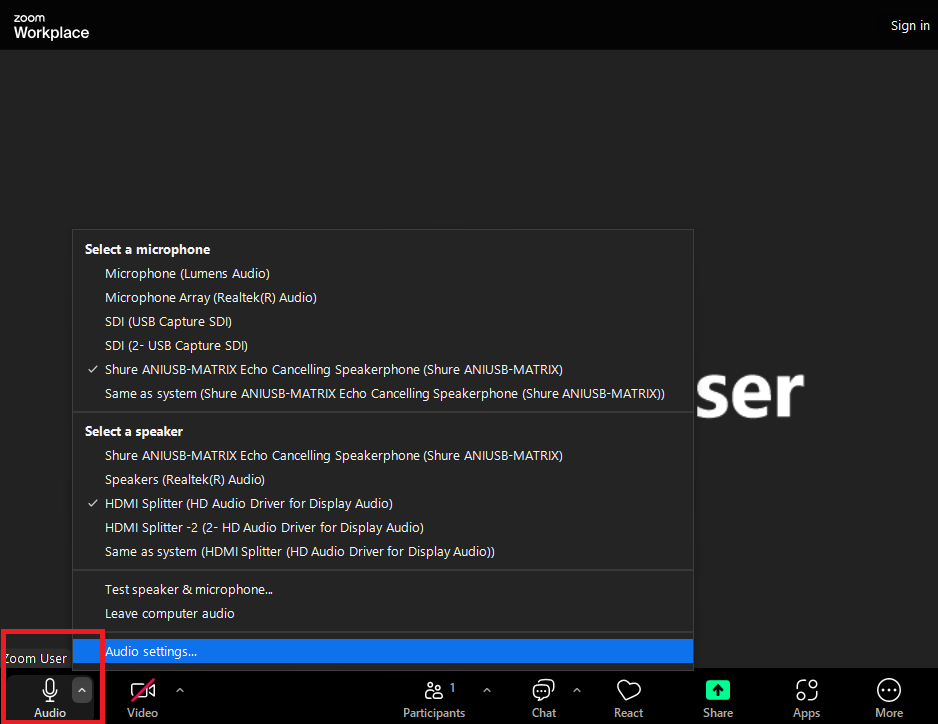
Select the correct microphone by consulting the table on this web page (above).
Speaker should always be set to either Dell P2418HT or HDMI splitter.
If you cannot hear remote students or they cannot hear you, see Troubleshooting below.
Document Camera
Each room is equipped with a USB document camera that can be displayed within Zoom.
After you've physically powered on the document camera, it should appear as an option under the Video button chevron ( ^ ) after about a minute:
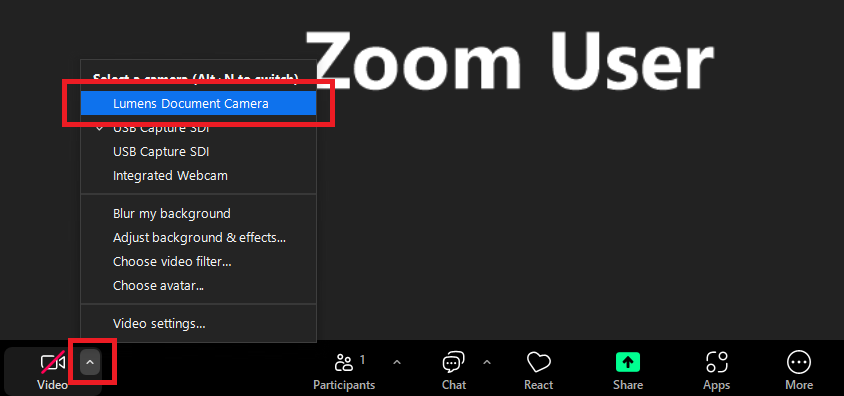
Choose Lumens Document Camera, then physically adjust the focus/zoom on the doc cam itself.
Usage Instructions
Touchpanel Control
Each room is equipped with a touchpanel that controls the camera system. Click the Camera Controls button on the touchpanel and utilize the onscreen buttons to control the camera. Please refer to this .pdf which illustrates basic Touch Panel controls (PDF) .
Tracking
Enable the auto-track function of the camera to have it automatically follow you as you walk around the room.
Preset
Each camera has four pre-determined views that can be triggered via the preset buttons. These correspond to:
- Closeup of Instructor Station.
- Wide view of the instructor station.
- Closeup of a whiteboard section.
- Wide view of the whiteboard.
Manual Control
You can also manually move the camera and zoom in/out as needed.
Special Features
Dual Cameras
You can show two cameras in Zoom at once (Document Cam and Room Cam):
- Select the Primary Camera (from the table above) to display as your video.
- Click Share and then the Advanced tab on top of the Share window.
- Select Content from 2nd Camera.
*Note: If the document camera does not show, press Switch camera in the upper left until video appears (make sure it is turned on first).
Remote/In-person Mixed Groups
The only way to pair a remote and in-person student within the same group is to have the in-person student use a personal device (laptop, phone) to join the Zoom meeting. You can then place them both in the same meeting room.
*Note: The in-person student must have their microphone and speakers muted anytime they are not in a meeting room, or their device will cause feedback.
Training
Please email Instructional Media for hands-on training.
Troubleshooting
Quick fixes for common issues.
I Can't Hear Sound from Zoom (Speakers)
Remote participants should make sure they can hear audio from their computer and Zoom and that their speakers aren't muted. Please attempt to play music on Youtube and Test Speaker and Mic on Zoom to confirm you are hearing audio. Do this by clicking the up arrow next to the microphone icon.
Verify your Zoom settings by making sure you have selected the correct mic (noted in the table at the top of this page) by clicking the up arrow next to the microphone icon.
Test microphone by using the up arrow next to the microphone icon and selecting Test Speaker & Microphone. A sound will begin playing in Zoom. If the sound doesn't play in the room, click try next device until you hear the sound through the room's speakers. Click Next and do the same process for the microphone.
Camera Is Blurry / Image Is Backwards
Verify HD video is selected and Mirror my video is not, as explained above. Contact IMS at extension 7374 if this is not the case.
FAQs
Frequently Asked Questions regarding the Hyflex rooms.
How Were These Rooms Determined?
Campus administration, IMS and Instructional Operations reviewed classroom spaces with Academic Deans to determine which were the most feasible and would have the greatest impact.
May I Request a Room?
We are happy to meet with you and review the feasibility of adding Hyflex equipment to your space. That request would then need to be sent to your Dean and campus administration for consideration or your department would need to fund the project.
What Is the Capacity/Layout of Room X?
Please reach out to campus Instructional Operations or utilize the 25Live Room Search feature of Collegenet/25Live.